Jellyfin
Jellyfin is a free software media system that puts you in control of managing and streaming your media.
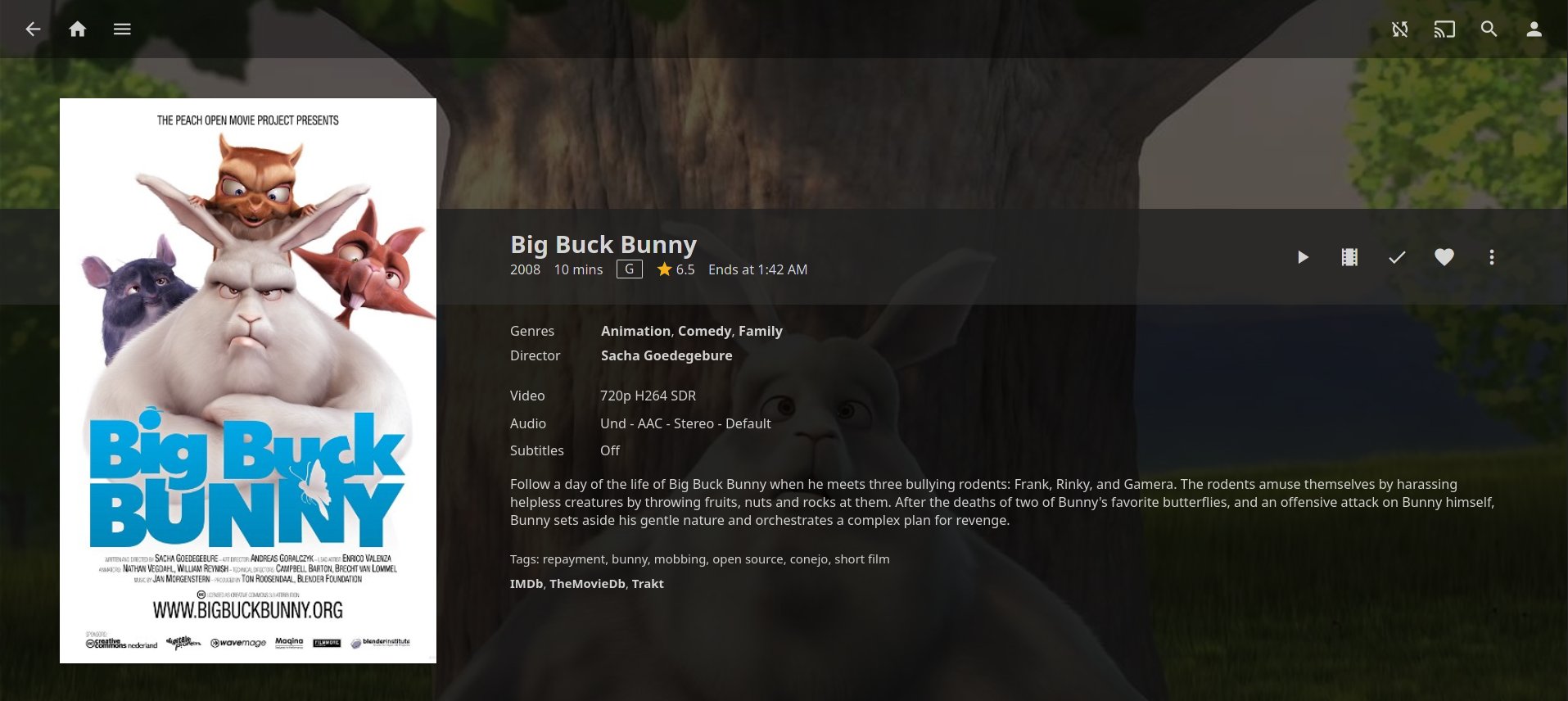
Package Information
| Property | Value |
|---|---|
| Package Name | jellyfin |
| Upstream | jellyfin.org |
| License | GPL-2.0 |
| Default Port | 8096 |
Installation
- Install Jellyfin from Package Center
- Access web interface at
http://your-nas:8096 - Complete initial setup wizard
Configuration
Data Location
- Configuration:
/var/packages/jellyfin/var/config/ - Cache:
/var/packages/jellyfin/var/cache/ - Log:
/var/packages/jellyfin/var/log/
Hardware Transcoding
For Intel-based Synology devices:
- Install SynoCli Video Driver package
- Enable hardware acceleration in Jellyfin Dashboard → Playback → Transcoding
- Select "Video Acceleration API (VAAPI)" as the hardware acceleration method
- Set the VA-API device to
/dev/dri/renderD128
Major Upgrades and Rollback
Major Jellyfin versions migrate the database forward with no downgrade
path: an older server cannot read a migrated database. When you upgrade
across major versions, the package automatically takes a backup
beforehand (jellyfin_backup_v<previous-version>_YYYYMMDD.tar.gz),
which is what makes a rollback possible.
What the backup contains
Everything needed to restore your server: configuration, the library database, users, metadata, artwork, playlists, and Jellyfin's own scheduled backups. Skipped on purpose is bulk the server transparently regenerates: prior rollback archives, transcode segments, and the extracted subtitle/attachment caches.
How to roll back
- In Package Center, uninstall Jellyfin and choose Restore backup of the package data files when asked (offered only if a backup exists). If several backups accumulated across upgrades, the newest is used.
- Manually install the previous version's
.spk(manual installation). - Start the package, verify your libraries, then run a library scan.
Caveats
- Rolling back without restoring the backup is unsupported: the old server cannot read the migrated database.
- Without a backup there is no restore option at uninstall — keep your own data-directory copy before major upgrades as well.
Troubleshooting
Permission Issues
Jellyfin runs as the sc-jellyfin service account. Ensure this account has read access to your media folders:
- Open File Station
- Right-click your media folder → Properties
- Add
sc-jellyfinwith read permission
Hardware Transcoding Not Working
- Verify SynoCli Video Driver is installed
- Check
/dev/dri/devices exist - Review logs in
/var/packages/jellyfin/var/log/
Related Packages
- FFmpeg - Transcoding engine
- SynoCli Video Driver - Hardware acceleration